Appearance
Gradient Data
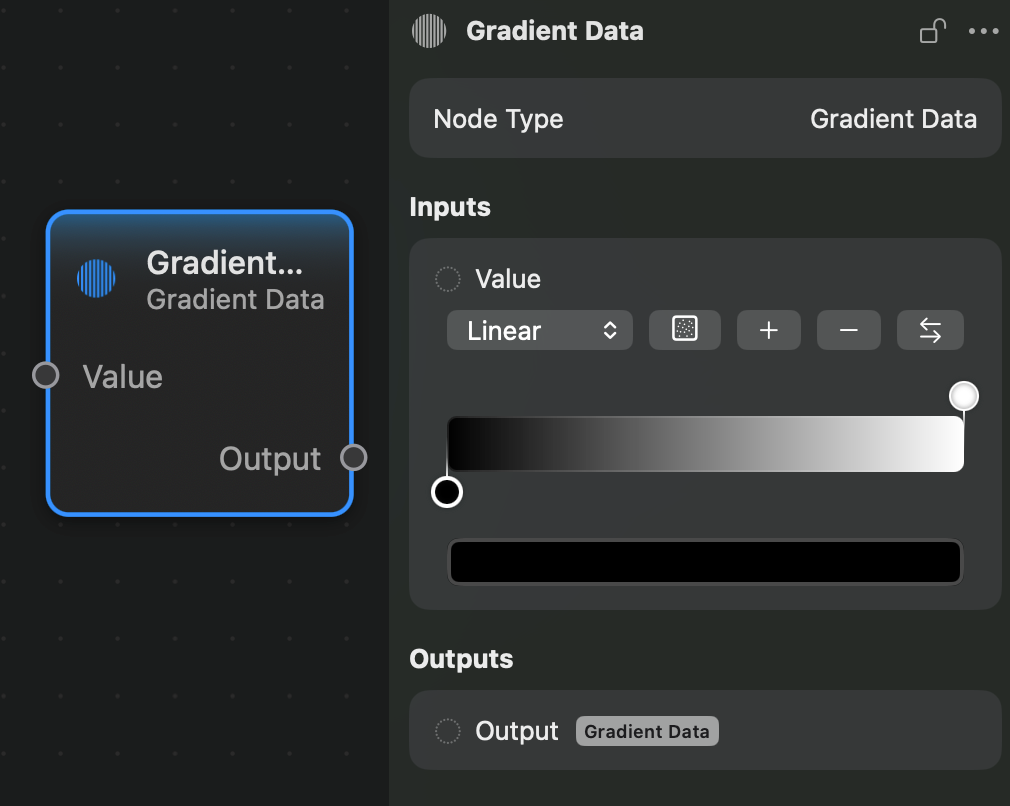
The Gradient Data node creates a GradientData value. A value of this type configures the overall look of gradients, by setting the colors, their positions, interpolation type and noise level. It used by nodes such as Linear Gradient and Radial Gradient to generate gradient images.
Because the controls for this node are complex, they are placed on the inspector panel:
Here is a breakdown of the components of the gradient data controls:
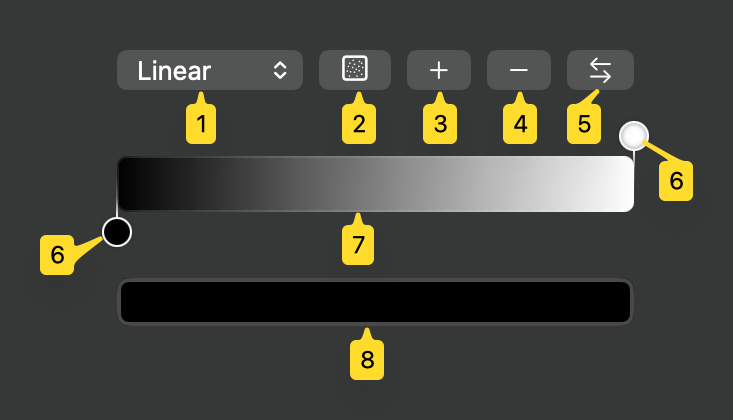
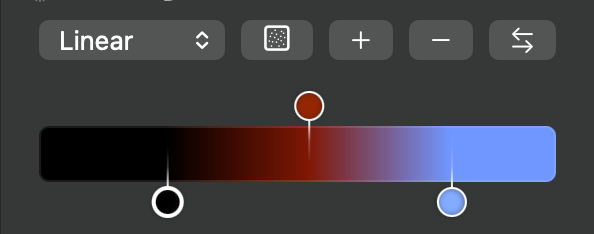
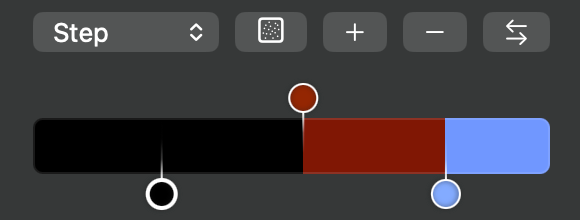
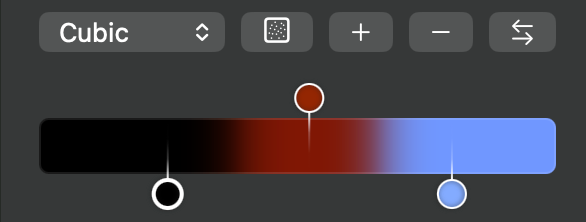
- This is dropdown which shows the available types of interpolation. Possible options are Linear, Step and Cubic. Bellow are image showing the difference between these interpolation types:
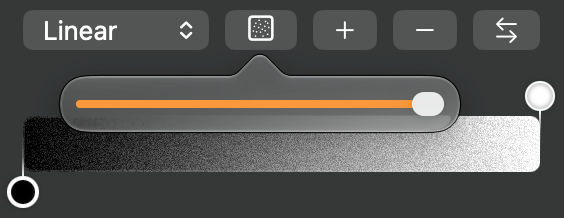
- This is the noise level control. When this button is pressed, a popover is displayed with a slider for the noise level of the gradient:
- This button will add a new color stop to the gradient.
- This button will remove the currently selected color stop of the gradient.
- This button will invert the order of the gradient's color stops.
- These are the color stop handles. They determine where in the gradient run a determined color will appear. The currently selected stop's handle will be drawn with a thicker outline. You can drag the handler to positon the stop along the gradient. You can delete a stop either by using the button
4when the stop is selected, or by right-clicking the handle and choosingDelete stopon the context menu. - This is the gradient preview area. It will preview the look of the gradient. You can also right-click this area to show a context menu with a
Add stopbutton that allows you to add a color stop at the position you clicked. - This is the color picker area. It will show the color of the currently selected color stop and, by clicking it, a color picker will appear, which allows you to change the color value of this stop.
Inputs and Outputs
Inputs:
Value: a GradientData value.
Outputs:
Output: a GradientData value.